
Getting started
Installing GangJam, creating your account and getting to your first jam.
Installation
- Download the installer from the Download page (you need an account) and run it: GangJam installs into your user profile, without administrator rights.
- If it's missing from your PC, the installer also adds VB-Audio Virtual Cable, the “virtual cable” GangJam uses to handle the audio of other applications. It's the only step that asks for Windows confirmation.
- Updates arrive by themselves: at startup GangJam checks for a new version and installs it in a few seconds. What's new in each version is under the bell at the top right.
Account
- Create your account on the Create account page and confirm your email address from the message you receive.
- In the app, sign in with your email and password: the session is saved, so the next time you start it you're already signed in.
- The mixer works even without an account or a network connection: you need an account to play with others.
The home screen
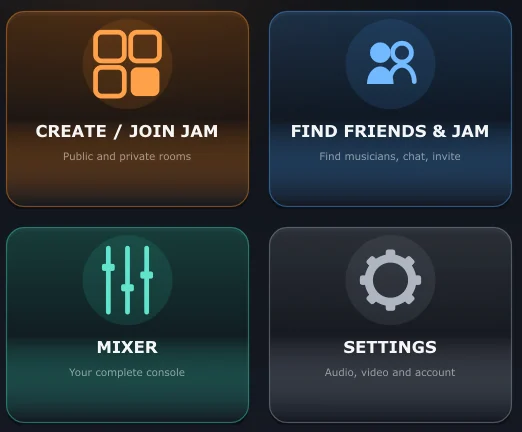
When it starts, GangJam shows four big buttons:
- CREATE / JOIN JAM: public and private rooms.
- FIND FRIENDS & JAM: find musicians, manage your friends, chat and send invites.
- MIXER: the console itself.
- SETTINGS: audio, video, network, notifications and system.
The house icon at the top left of the mixer always brings you back here.
Your first jam in three steps
- Connect your audio interface and check in Settings > Audio that it's selected (preferably with its ASIO driver).
- Join a public room from CREATE / JOIN JAM, or create your own and invite your friends.
- Play: the others' strips appear in the mixer and your signal goes out by itself.
Can't find the answer? Press FEEDBACK in the app or write to us from the Contact page.