
Notifications and the bell
Alert sounds and getting the other musicians' attention.
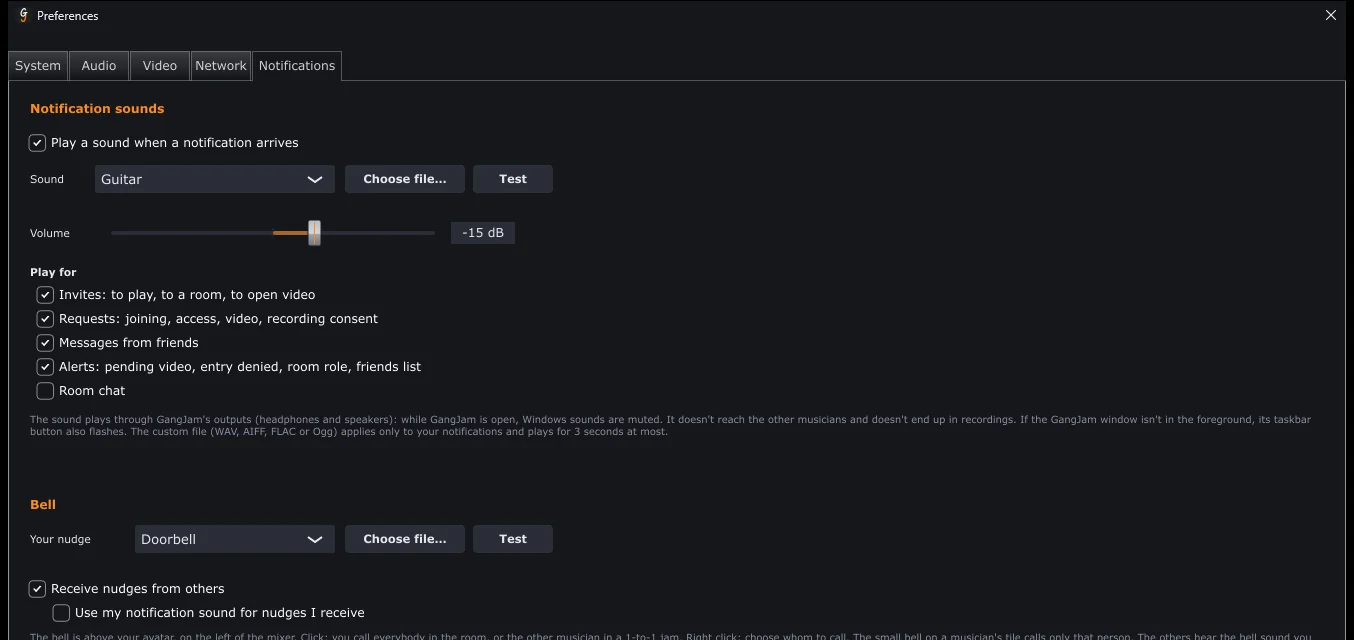
The notification sound
- GangJam plays a sound when an invite arrives (to play, to a room, to open the video), a request (join, access, video, recording consent), a message from a friend or a group, or a room alert.
- In Settings > Notifications choose the sound (twelve built-in ones or your own WAV, AIFF, FLAC or Ogg file up to 3 seconds long), the volume and which alerts should play a sound. Room chat starts with the sound off.
- The sound plays through GangJam's outputs (main output, headphones, extra outputs): it doesn't reach the others and doesn't end up in recordings. If GangJam isn't in the foreground, its taskbar button also flashes.
The bell
- The bell above your avatar, on the left of the mixer, gets the others' attention: a click calls everyone in the room (or the other musician in a one-on-one jam), a right-click lets you choose who to call. The small bell at the bottom right of a musician’s tile calls only that person (your own tile has none).
- Whoever you call hears the sound you chose, sees your avatar and, in the video window, the border of your tile flash, and reads “is calling you”. At most one nudge every 5 seconds.
- In Settings > Notifications, Bell section: the sound of your nudge (one of GangJam's twelve or a file of yours, uploaded to GangJam so the others can hear it: its first 3 seconds), the checkbox to receive nudges or not, and the one to hear them with your notification sound.
What's new
The bell at the top right, in the mixer bar, is a different one: it shows what's new in each GangJam version and lights up when there's an update.
Can't find the answer? Press FEEDBACK in the app or write to us from the Contact page.